Working with GPIOs on NVIDIA Jetson with libgpiod
Introduction
- In this tutorial, we will learn how to read and toggle GPIOs on an NVIDIA Jetson module using libgpiod.
- libgpiod is the modern, userspace approach to GPIO control on Linux systems, replacing the deprecated sysfs interface.
- By the end of this guide, you'll be able to control GPIO pins, read their states, and toggle them from the command line or within Python/C applications.
What You Will Need
Before we dive into GPIO control, make sure you have the following:
-
NVIDIA Jetson module with JetPack 6.2.2
A Jetson device (Orin NX, Orin Nano, AGX Orin, etc.) running JetPack 6.2.2 or later with Ubuntu-based L4T. -
libgpiod installed
GPIO control library and command-line tools for userspace GPIO access. -
GPIO pins to test
Access to GPIO pins on your Aerium carrier board (e.g., Lumen, Helios) or expansion headers. -
Terminal access
Local or SSH terminal access to your Jetson device. -
Basic knowledge
Familiarity with Linux command line and GPIO concepts.
Prerequisites
Step 1: Verify JetPack Version
Verify that your Jetson is running JetPack 6.2.2 or later:
cat /etc/nv_tegra_release
You should see output similar to:
R36 (release), REVISION: 5.0...[the rest of the line...]
Step 2: Install libgpiod
If not already installed, install the libgpiod library and tools:
sudo apt update
sudo apt install -y libgpiod-dev libgpiod-doc gpiod
Verify the installation:
gpioinfo --version
Step 3: Enabling GPIO Pins with jetson-io.py
Before you can control GPIO pins from userspace, you need to make sure they are
exported and not reserved by the system. NVIDIA provides a configuration
utility called jetson-io.py that lets you select which header or board pins
are exposed as GPIOs.
-
Run the utility with root privileges:
sudo /opt/nvidia/jetson-io/jetson-io.py -
Select
Configure Jetson 40Pin Header.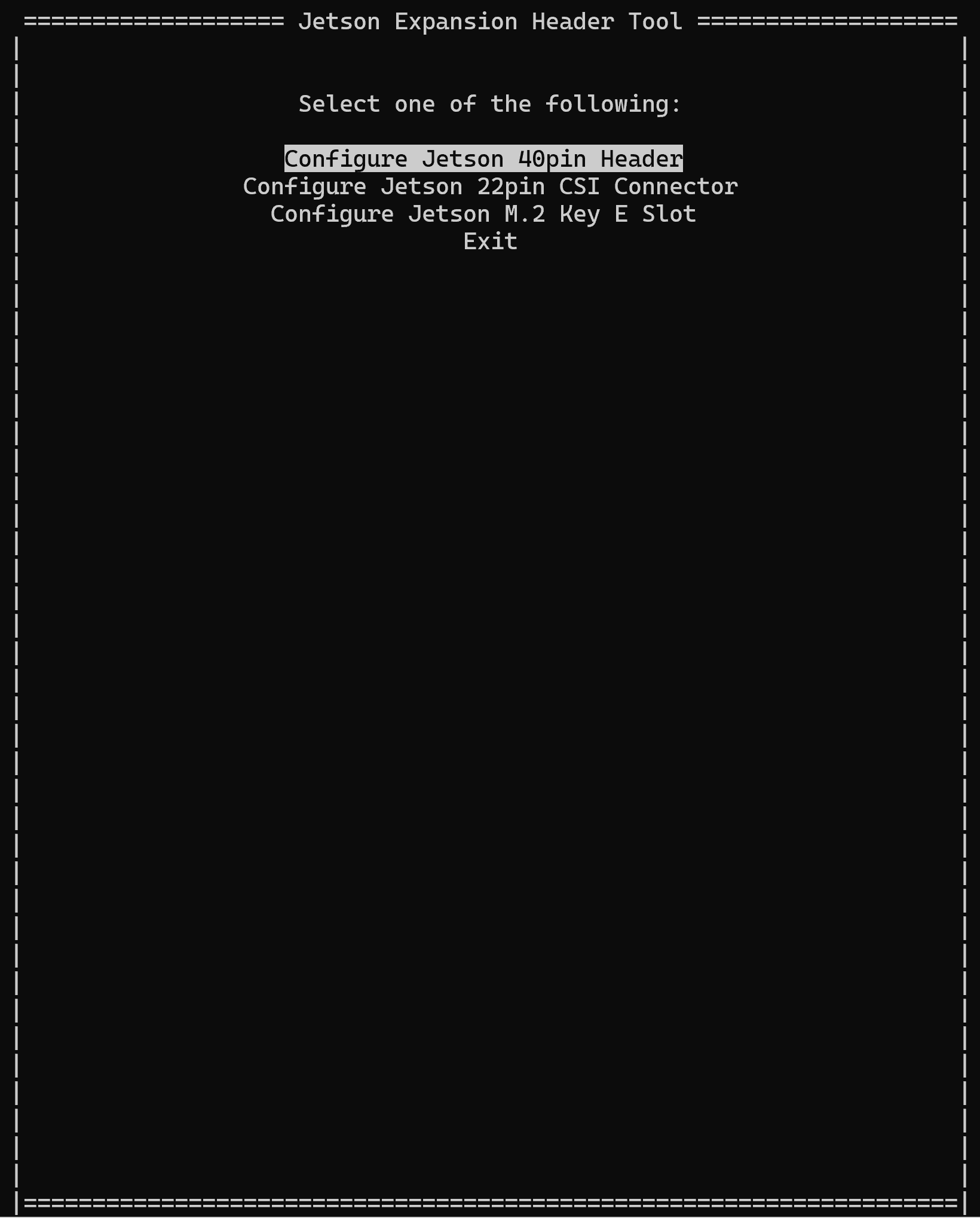
-
Select
Configure Pin Heades Manually.
-
Select
Move to the desired interface and click Enter to move the selection to GPIO.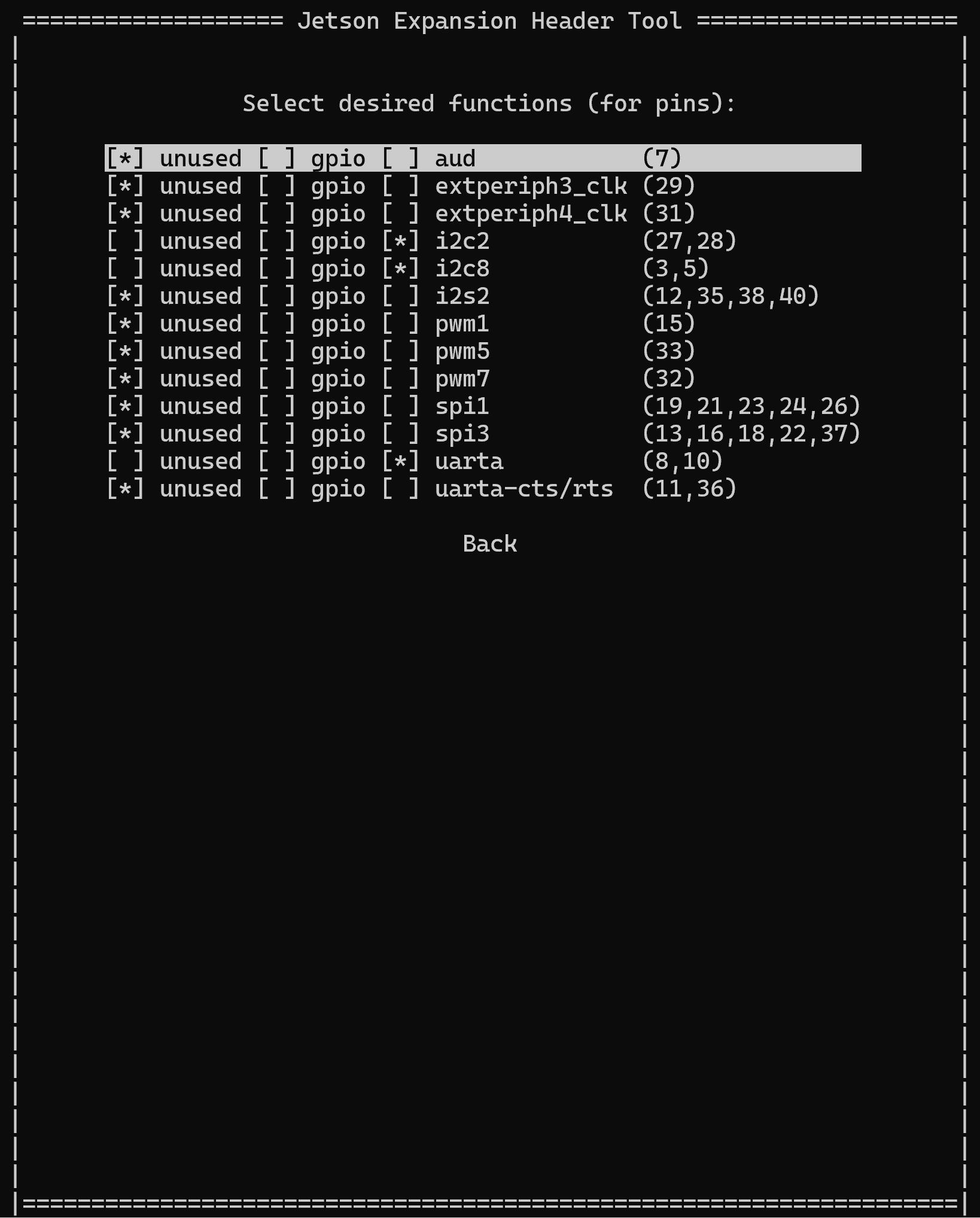
-
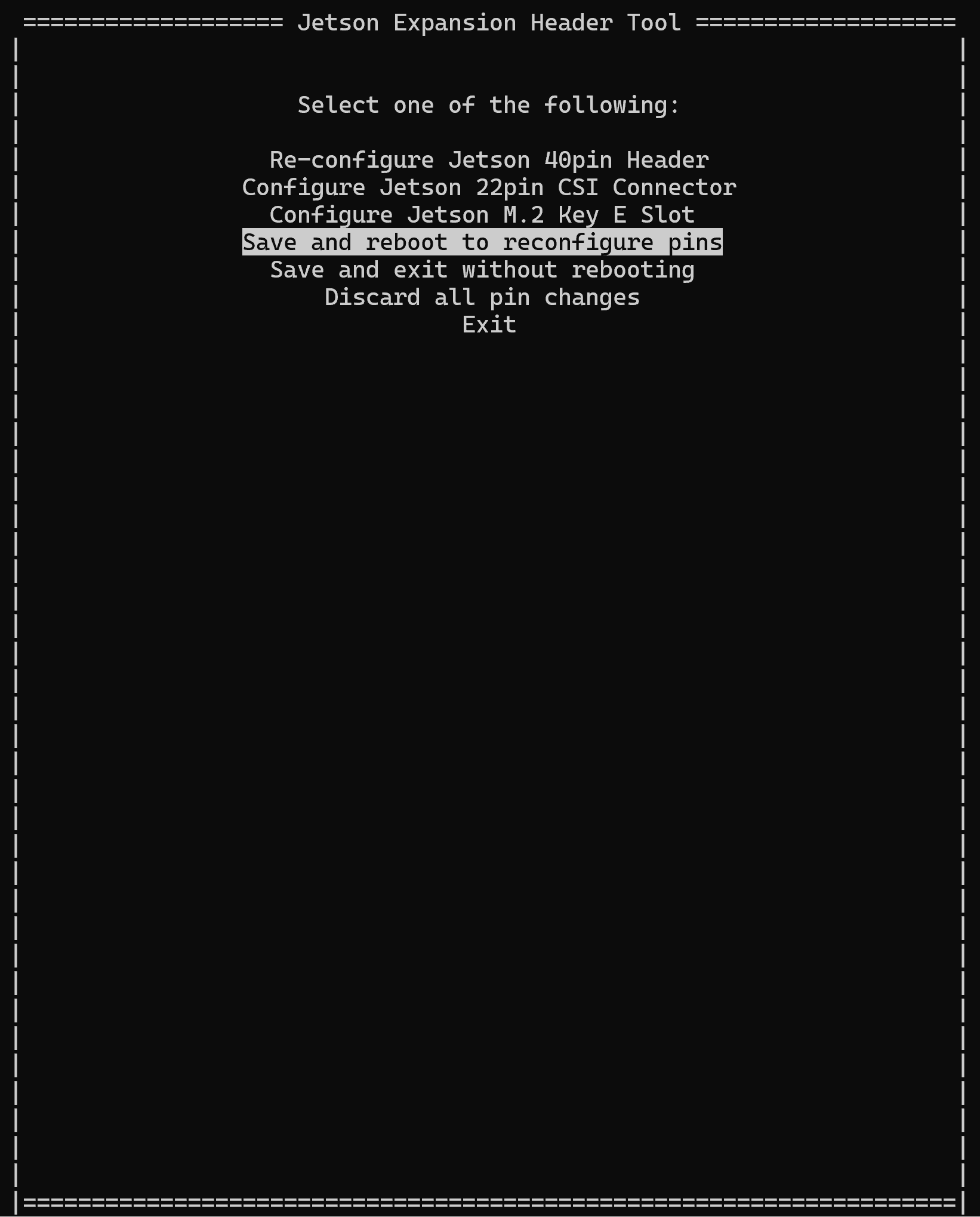
After making your selections, choose Save and reboot to reconfigure pins and reboot the Jetson device when prompted.
Understanding GPIO Numbering
NVIDIA Jetson devices use a hierarchical GPIO naming convention. To identify available GPIO pins and their current states.
gpioinfo
This command lists all GPIO chips and their pins. Output will show:
gpiochip0 - 225 lines:
    line   0:      "{NAME}"       unused   input  active-high
    line   1:      "{NAME}"       unused   input  active-high
    ...
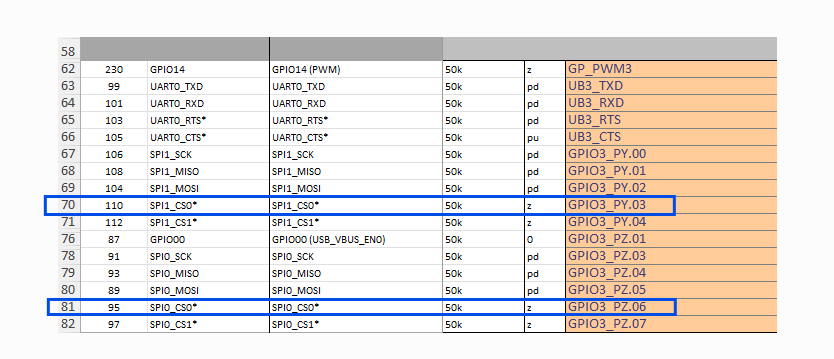
To correlate a pin name to a line number use the pinmux table related to your NVIDIA Jetson.
For example, for Jetson Orin series, locating the SPI0_CS0 and SPI1_CS0 pins.
The pin names (PZ.06 and PY.03) have line numbers correlated in the gpioinfo output.
Those are the line numbers to be used with libgpiod.
Key information:
gpiochip0- The GPIO controller chipline X- The GPIO line number within that chip- State information (used/unused, input/output, active level)
Reading GPIO Values
Using gpioget Command
To read the current state of a GPIO pin:
gpioget gpiochip0 <line_number>
Example - Read GPIO line 232:
gpioget gpiochip0 232
Output will be 0 (low) or 1 (high).
Reading Multiple GPIO Pins
Read multiple pins at once:
gpioget gpiochip0 232 233 234
Output example:
0 1 1
Reading with a Description
Use gpiofind to locate a GPIO by name if available:
gpiofind "GPIO_PIN_NAME"
Then read it:
gpioget $(gpiofind "GPIO_PIN_NAME")
Toggling (Writing to) GPIO Values
Setting GPIO as Output
To use a GPIO pin as an output, you must configure it first. Use the gpioset command:
gpioset gpiochip0 <line_number>=<value>
Where <value> is 0 (low) or 1 (high).
Example: Toggle a GPIO Pin
Set GPIO line 232 to high (1):
gpioset gpiochip0 232=1
Set it to low (0):
gpioset gpiochip0 232=0
NOTE: The pin must not be in use by a kernel driver. If you receive an "Device or resource busy" error, the pin is already claimed by the system.
Toggle with Hold Duration
To set a GPIO high and keep it high while the command runs:
gpioset --hold-period=5s gpiochip0 232=1
This keeps the pin high for 5 seconds, then automatically returns it to its default state.
Toggle Multiple GPIO Pins
Control multiple pins in a single command:
gpioset gpiochip0 232=1 233=0 234=1
Monitoring GPIO with gpiomon
To continuously monitor GPIO state changes:
gpiomon gpiochip0 <line_number>
Example - Monitor GPIO line 232:
gpiomon gpiochip0 232
Output example:
event:  RISING EDGE offset: 232 timestamp: [    1234.567890]
event:  FALLING EDGE offset: 232 timestamp: [    1235.234567]
Monitor multiple pins:
gpiomon gpiochip0 232 233 234
Press Ctrl+C to stop monitoring.
Advanced Usage with gpioset Flags
Set as Input with Pull Configuration
Modern versions of libgpiod support bias (pull-up/pull-down) configuration:
gpioset --bias=pull-up gpiochip0 232=1
Active Low Configuration
If your GPIO logic is inverted (active-low):
gpioset --active-low gpiochip0 232=1
Python Example: GPIO Control with libgpiod
Installation
pip3 install gpiod
Read GPIO
import gpiod

# Open the GPIO chip
chip = gpiod.Chip('gpiochip0')

# Get a specific line
line = chip.get_line(232)

# Request the line for input
config = gpiod.LineRequest([line], gpiod.LINE_REQ_DIR_IN)

# Read the value
value = config.get_value(0)
print(f"GPIO 232 state: {value}")

config.release()
Write/Toggle GPIO
import gpiod

# Open the GPIO chip
chip = gpiod.Chip('gpiochip0')

# Get a specific line
line = chip.get_line(232)

# Request the line for output
config = gpiod.LineRequest([line], gpiod.LINE_REQ_DIR_OUT)

# Set the line high
config.set_value(0, 1)
print("GPIO 232 set to HIGH")

# Set the line low
config.set_value(0, 0)
print("GPIO 232 set to LOW")

config.release()
Monitor GPIO Changes
import gpiod

chip = gpiod.Chip('gpiochip0')
line = chip.get_line(232)

# Request the line for input with event monitoring
config = gpiod.LineRequest([line], gpiod.LINE_REQ_DIR_IN | gpiod.LINE_REQ_EV_BOTH_EDGES)

print("Monitoring GPIO 232 for changes (Ctrl+C to exit)...")
try:
    while True:
        # Wait for events with 1 second timeout
        if config.wait_event(1000):
            events = config.get_events()
            for event in events:
                print(f"Event: {'RISING' if event.type == gpiod.LineEvent.RISING_EDGE else 'FALLING'} EDGE")
except KeyboardInterrupt:
    print("\nMonitoring stopped")
finally:
    config.release()
C Example: GPIO Control with libgpiod
Read GPIO
#include <gpiod.h>
#include <stdio.h>

int main() {
    // Open the GPIO chip
    struct gpiod_chip *chip = gpiod_chip_open("/dev/gpiochip0");
    if (!chip) {
        perror("gpiod_chip_open");
        return 1;
    }

    // Get GPIO line 232
    struct gpiod_line *line = gpiod_chip_get_line(chip, 232);
    if (!line) {
        perror("gpiod_chip_get_line");
        gpiod_chip_close(chip);
        return 1;
    }

    // Request the line as input
    if (gpiod_line_request_input(line, "gpio-test") < 0) {
        perror("gpiod_line_request_input");
        gpiod_chip_close(chip);
        return 1;
    }

    // Read the value
    int value = gpiod_line_get_value(line);
    printf("GPIO 232 state: %d\n", value);

    // Release and close
    gpiod_chip_close(chip);
    return 0;
}
Compile with:
gcc -o gpio_read gpio_read.c -lgpiod
./gpio_read
Write/Toggle GPIO
#include <gpiod.h>
#include <stdio.h>
#include <unistd.h>

int main() {
    struct gpiod_chip *chip = gpiod_chip_open("/dev/gpiochip0");
    if (!chip) {
        perror("gpiod_chip_open");
        return 1;
    }

    struct gpiod_line *line = gpiod_chip_get_line(chip, 232);
    if (!line) {
        perror("gpiod_chip_get_line");
        gpiod_chip_close(chip);
        return 1;
    }

    // Request the line as output
    if (gpiod_line_request_output(line, "gpio-test", 0) < 0) {
        perror("gpiod_line_request_output");
        gpiod_chip_close(chip);
        return 1;
    }

    // Toggle the GPIO
    printf("Setting GPIO 232 to HIGH...\n");
    gpiod_line_set_value(line, 1);
    sleep(2);

    printf("Setting GPIO 232 to LOW...\n");
    gpiod_line_set_value(line, 0);
    sleep(2);

    gpiod_chip_close(chip);
    return 0;
}
C++ Example: GPIO Control with libgpiod
Read GPIO
#include <gpiod.h>
#include <iostream>
#include <stdexcept>

class GPIOReader {
private:
    gpiod_chip *chip;
    gpiod_line *line;

public:
    GPIOReader(const char *chip_name, unsigned int line_num) {
        chip = gpiod_chip_open(chip_name);
        if (!chip) {
            throw std::runtime_error("Failed to open GPIO chip");
        }

        line = gpiod_chip_get_line(chip, line_num);
        if (!line) {
            gpiod_chip_close(chip);
            throw std::runtime_error("Failed to get GPIO line");
        }

        if (gpiod_line_request_input(line, "gpio-test") < 0) {
            gpiod_chip_close(chip);
            throw std::runtime_error("Failed to request GPIO line as input");
        }
    }

    int read() {
        return gpiod_line_get_value(line);
    }

    ~GPIOReader() {
        if (chip) {
            gpiod_chip_close(chip);
        }
    }
};

int main() {
    try {
        GPIOReader reader("/dev/gpiochip0", 232);
        int value = reader.read();
        std::cout << "GPIO 232 state: " << value << std::endl;
    } catch (const std::exception &e) {
        std::cerr << "Error: " << e.what() << std::endl;
        return 1;
    }
    return 0;
}
Compile with:
g++ -o gpio_read gpio_read.cpp -lgpiod
./gpio_read
Write/Toggle GPIO
#include <gpiod.h>
#include <iostream>
#include <chrono>
#include <thread>
#include <stdexcept>

class GPIOWriter {
private:
    gpiod_chip *chip;
    gpiod_line *line;

public:
    GPIOWriter(const char *chip_name, unsigned int line_num) {
        chip = gpiod_chip_open(chip_name);
        if (!chip) {
            throw std::runtime_error("Failed to open GPIO chip");
        }

        line = gpiod_chip_get_line(chip, line_num);
        if (!line) {
            gpiod_chip_close(chip);
            throw std::runtime_error("Failed to get GPIO line");
        }

        if (gpiod_line_request_output(line, "gpio-test", 0) < 0) {
            gpiod_chip_close(chip);
            throw std::runtime_error("Failed to request GPIO line as output");
        }
    }

    void set(int value) {
        gpiod_line_set_value(line, value);
    }

    void toggle(int duration_ms = 2000) {
        std::cout << "Setting GPIO to HIGH...\n";
        set(1);
        std::this_thread::sleep_for(std::chrono::milliseconds(duration_ms));

        std::cout << "Setting GPIO to LOW...\n";
        set(0);
        std::this_thread::sleep_for(std::chrono::milliseconds(duration_ms));
    }

    ~GPIOWriter() {
        if (chip) {
            gpiod_chip_close(chip);
        }
    }
};

int main() {
    try {
        GPIOWriter writer("/dev/gpiochip0", 232);
        writer.toggle();
    } catch (const std::exception &e) {
        std::cerr << "Error: " << e.what() << std::endl;
        return 1;
    }
    return 0;
}
Compile with:
g++ -o gpio_write gpio_write.cpp -lgpiod
./gpio_write
Troubleshooting
Error: "Device or resource busy"
The GPIO pin is already in use by a kernel driver or another process.
Solution:
- Check if the pin is controlled by a kernel module
- Use
lsof /dev/gpiochip*to find processes using GPIO - Unbind the pin from its driver if possible
Error: "No such device"
The GPIO chip does not exist or is not accessible.
Solution:
- Verify the chip exists:
ls -la /dev/gpiochip* - Check user permissions: userspace GPIO access typically requires root or membership in the
gpiogroup - Add your user to the gpio group:
sudo usermod -aG gpio $USER
GPIO State Not Changing
The pin may be reserved by a kernel driver or the configuration may be incorrect.
Solution:
- Verify the pin with
gpioinfo - Check if another process is controlling the pin
- Ensure you're using the correct chip number and line number
Summary
You now understand how to:
- Discover available GPIO pins with
gpioinfo - Read GPIO states with
gpioget - Toggle GPIO outputs with
gpioset - Monitor GPIO changes with
gpiomon - Control GPIO from Python and C applications
libgpiod is the recommended approach for GPIO control on modern Linux systems and JetPack 6.2.2. It provides a clean, stable interface for GPIO operations in userspace.